
Get started
Get started with OPTANE.
Follow these steps in order. If you get stuck, ask us on Discord and we'll help.
App download will be available at release. You can preorder Lifetime access now; follow the installation steps once the download is ready.
Step 1 of 6
Get a license
Create your account on this website with Google or Discord, then choose a plan. One license unlocks every tool in OPTANE, on one PC.
- You'll get a license key when you buy. Keep it somewhere safe: you'll need it in the app.
Step 2 of 6
Download OPTANE
Download OPTANE and open it. It runs on Windows 10 and Windows 11.
- Windows will ask if OPTANE can make changes to your PC. Click Yes. OPTANE needs this to change system settings.
Step 3 of 6
Sign up in the app
In the app's sign-in window, choose Register. Pick a username and a password, enter your license key, then click Create account.
- Tick “Remember me on this PC” to sign in automatically next time.
- After this, just use Sign in with your username and password.
Step 4 of 6
Save a restore point
The first time OPTANE opens, it offers to save a Windows restore point. Click Yes. If anything ever goes wrong, you can roll your PC back to this point.
- You can save more restore points any time in Recovery › Restore points.
In OPTANE ·Recovery / Restore points 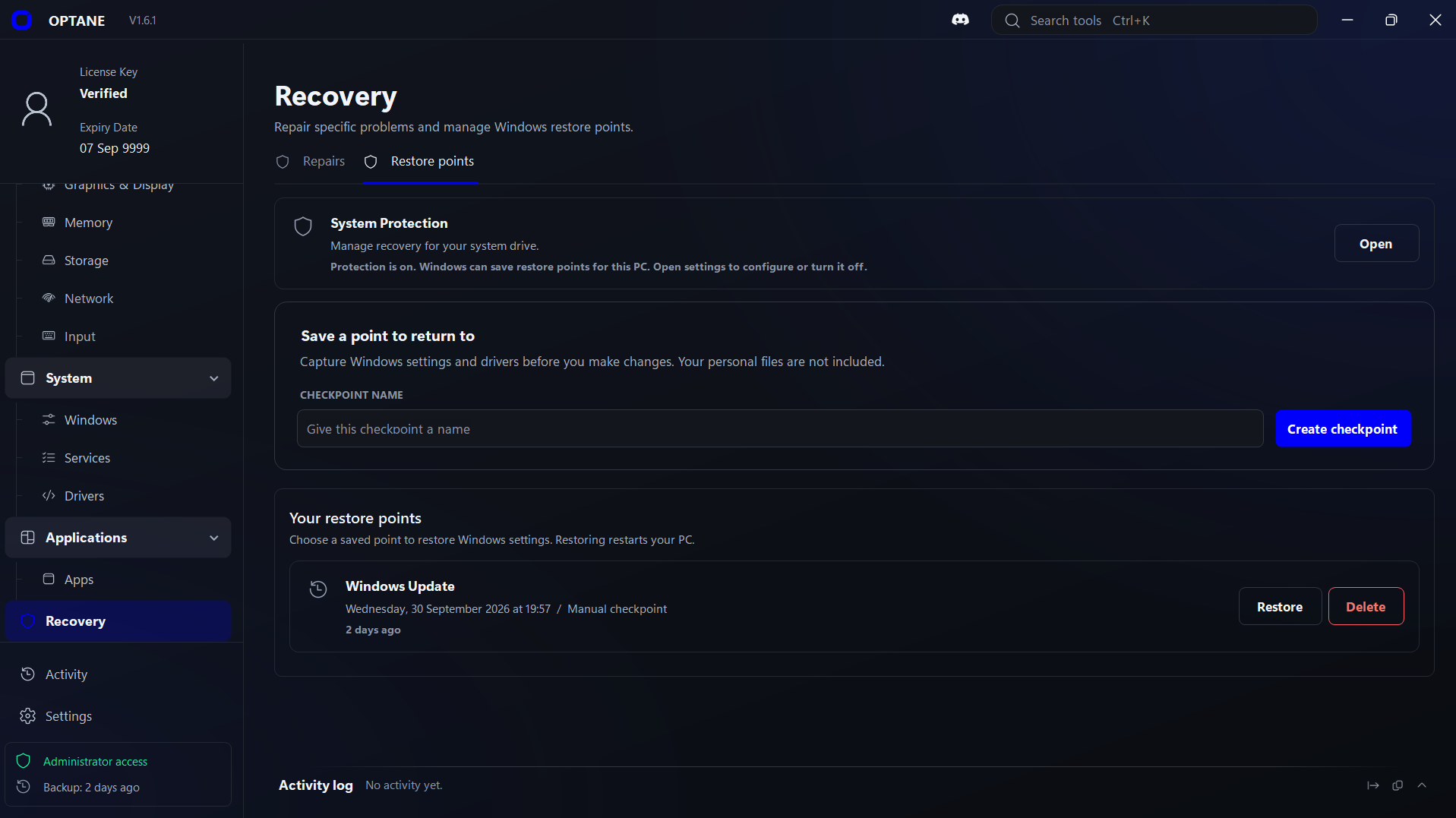
Step 5 of 6
Optimize your PC
Pick what you want to improve. A good order for a first run:
- Storage › Cleanup: remove junk files you don't need.
- Startup: stop apps you don't need from opening with Windows.
- CPU & Power › Profiles: choose Performance or Maximum.
- Gaming: check Game Mode and turn off background recording if you don't use it.
- Windows › Privacy: switch off ads and the data sharing you don't want.
In OPTANE ·CPU & Power / Profiles 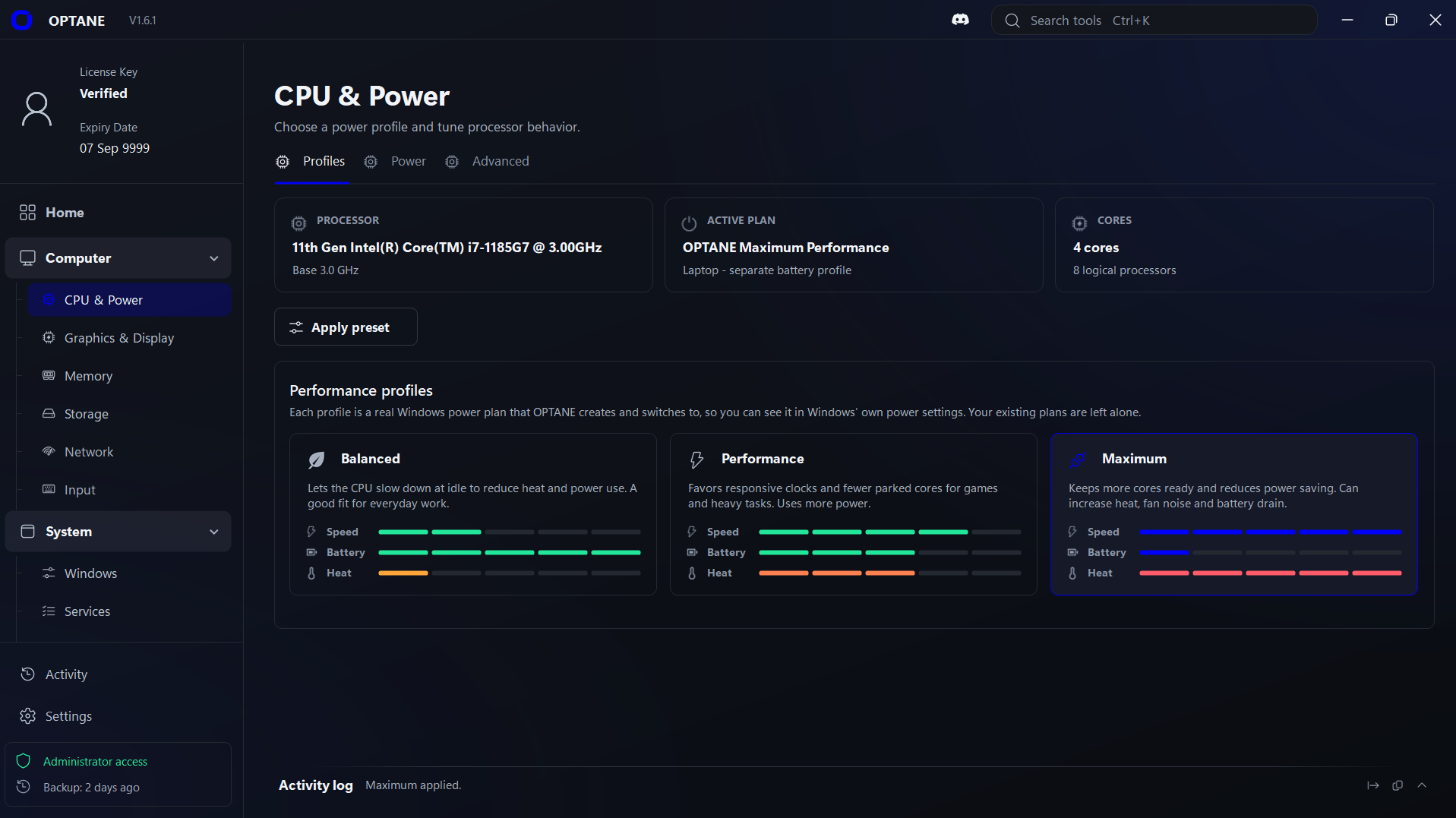
Step 6 of 6
Check what changed
Open Activity to see everything OPTANE did since you opened it. Changed your mind? Switch the setting back, or restore your restore point.
Stuck on a step?
Ask in our Discord. Real people answer.
FAQ
Questions, answered.
Can't find yours? Ask us on Discord.
Is OPTANE safe to use?
Yes. OPTANE doesn't change anything until you click, and every setting explains what it does.
The first time you open it, OPTANE offers to save a Windows restore point, so you can roll your PC back if you need to.
Can I undo changes?
Yes. Most settings are switches you can turn back. For bigger changes, open Recovery › Restore points and restore a saved point.
A restore point brings back your Windows settings and drivers. It doesn't touch your personal files, and your PC restarts to finish.
Will OPTANE increase my FPS?
It depends on your PC. Things like a faster power mode, fewer background apps and no background recording help on some PCs and change little on others.
We don't promise a number, because no honest app can. Try it and keep what helps.
Does it work on AMD and on laptops?
Yes. OPTANE works on desktops and laptops, with Intel or AMD processors.
One exception: CPU power limits and undervolting need a supported Intel processor. On some laptops, the maker locks these settings.
Does it work on low-end PCs?
Yes. You don't need a gaming PC to run OPTANE. It won't turn old hardware into new hardware, but clearing out startup apps, background apps and junk files can make a slow PC feel quicker.
Do I need admin rights?
Yes. OPTANE changes system settings, so Windows asks for permission when you open it. Click Yes.
How many PCs can I use my license on?
One. Your license is linked to the PC you use it on.
Getting a new PC? Ask us on Discord.
Do I need the internet?
You need a connection to sign in. If you ticked “Remember me on this PC”, OPTANE keeps working for up to 3 days without one.
Does a Lifetime license need renewing?
No. Lifetime is a one-time purchase with no monthly renewals. It includes every tool on one PC.
What's the refund policy?
Our refund policy explains when you can get your money back and how to ask.
Read the refund policyWhat information does OPTANE collect?
We ask for your email when you create your account. We use it to know it's you, to link your licenses to you, and to help you reset or move your license.
To check your license, the app also sends your username, password, license key, a device ID and your IP address when you sign in.
Read the privacy policyIs OPTANE in my language?
This website is in many languages, but the OPTANE app itself is in English for now. Every setting is explained in plain, simple English.